
Here’s a guide on how to export your account data which include trades, orders, and account history, on Bybit TR. Please note that the account data export function is not available on the Bybit TR app.
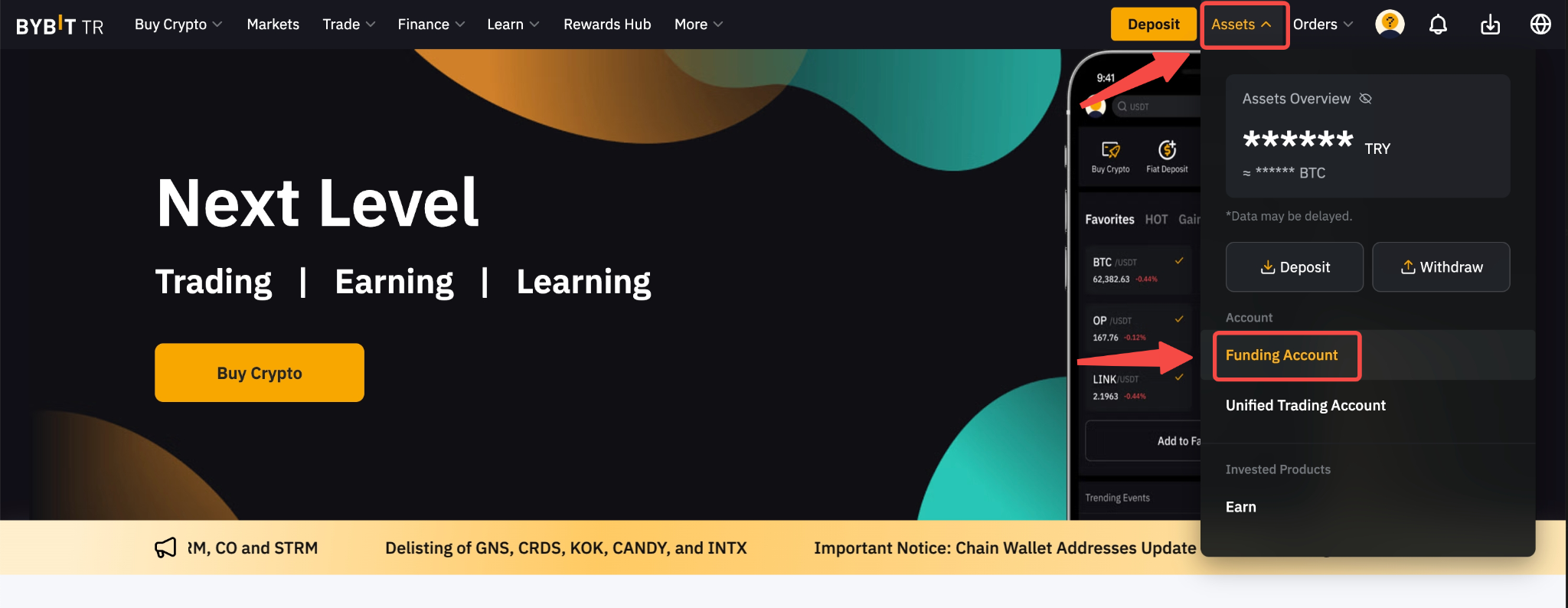
Step 1: To create your account statement, please click on Assets → Funding Account → History → Export or go to this page.

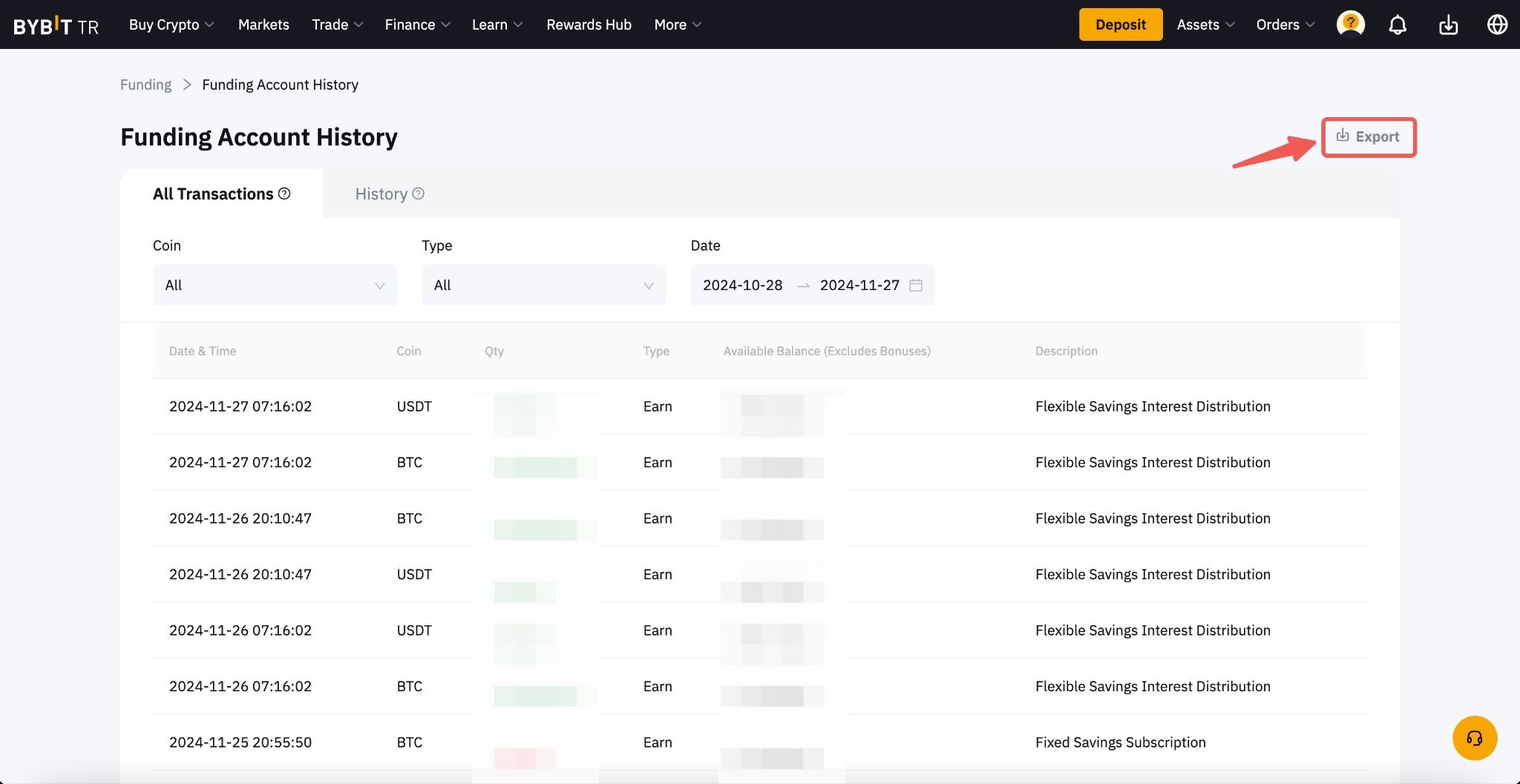
Step 2: Select the type of data that you wish to export as well as the time range and simply click on Export to generate your account statement.
By default, only your Bybit TR UID will be shown in the statement but you can tick the Legal Name box to include your Identity Verification name and information in your account statement.
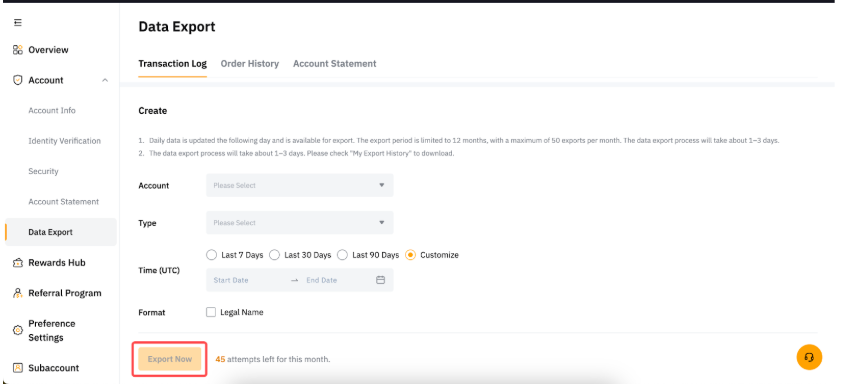
Please take note of the following before exporting your data:
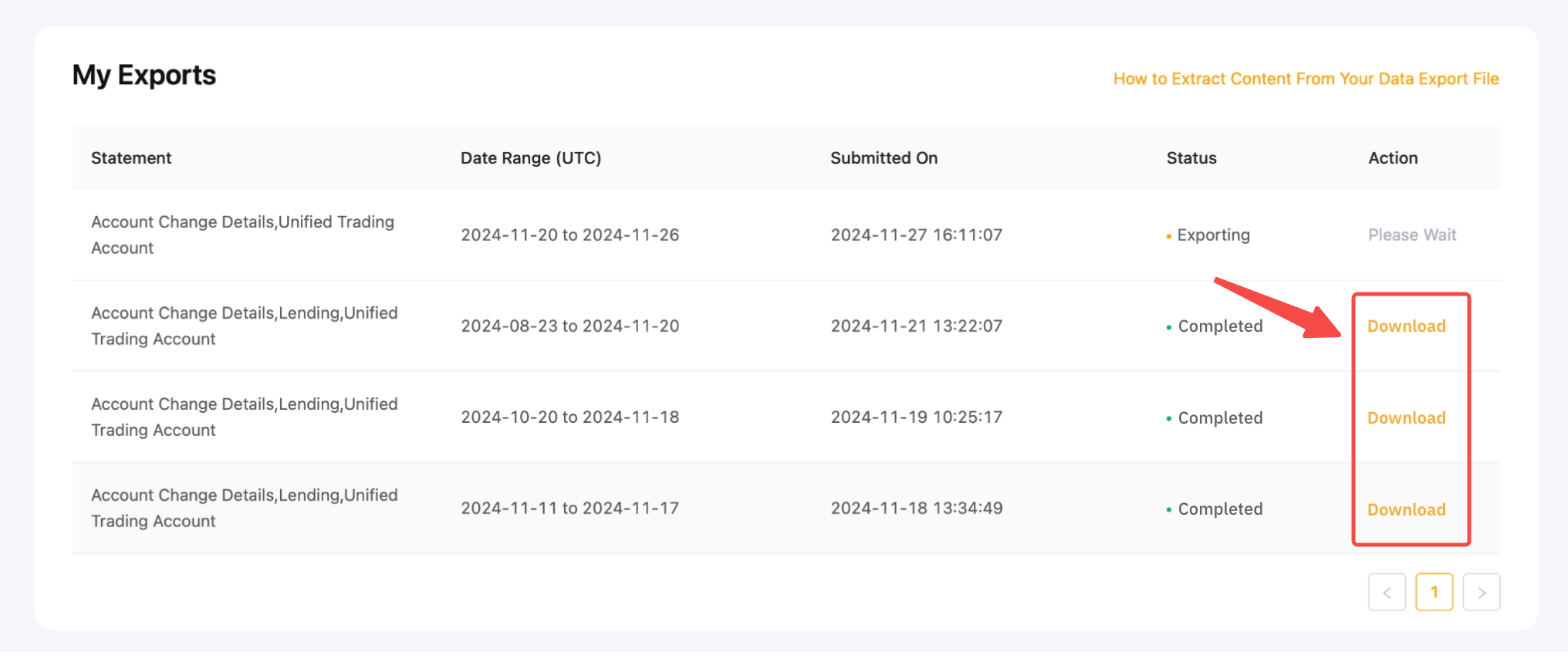
Step 3: The exporting process may take up to 1-3 days to complete. Once it is ready, the status will change to Exported and the download button will be visible. Additionally, an email will be sent to your registered email address. Click on Download to get your account statement.
Notes:
— If you encounter issues when extracting the data from the downloaded file, please consult this guide.
— You can export up to 10 account statements per month.
— Account Statements do not have a limit of data entries.
— Some data may not be available in the account statement, such as the Spot Order history. To export these data, please go directly to each Product History page and click on the Export button on the top right corner
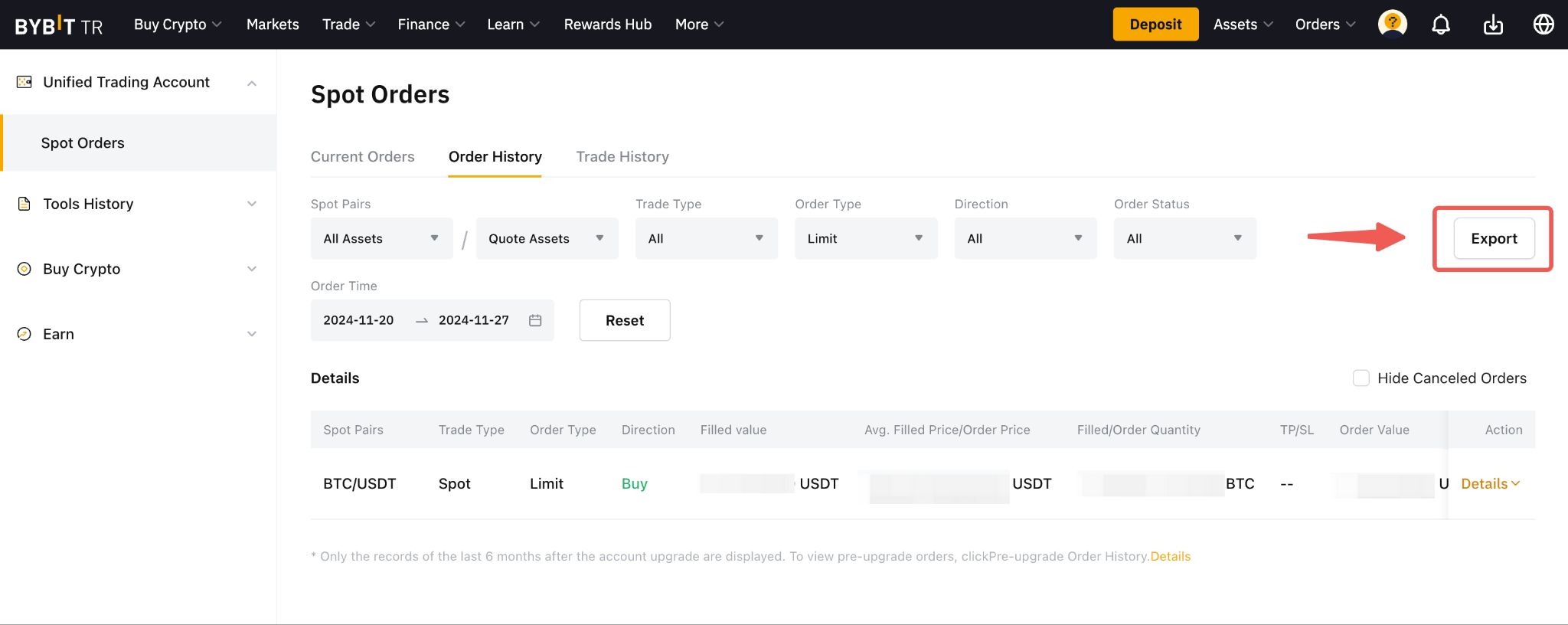
In the pop-up window, you can select the date range for your data and click on Export Now to generate your data export file.
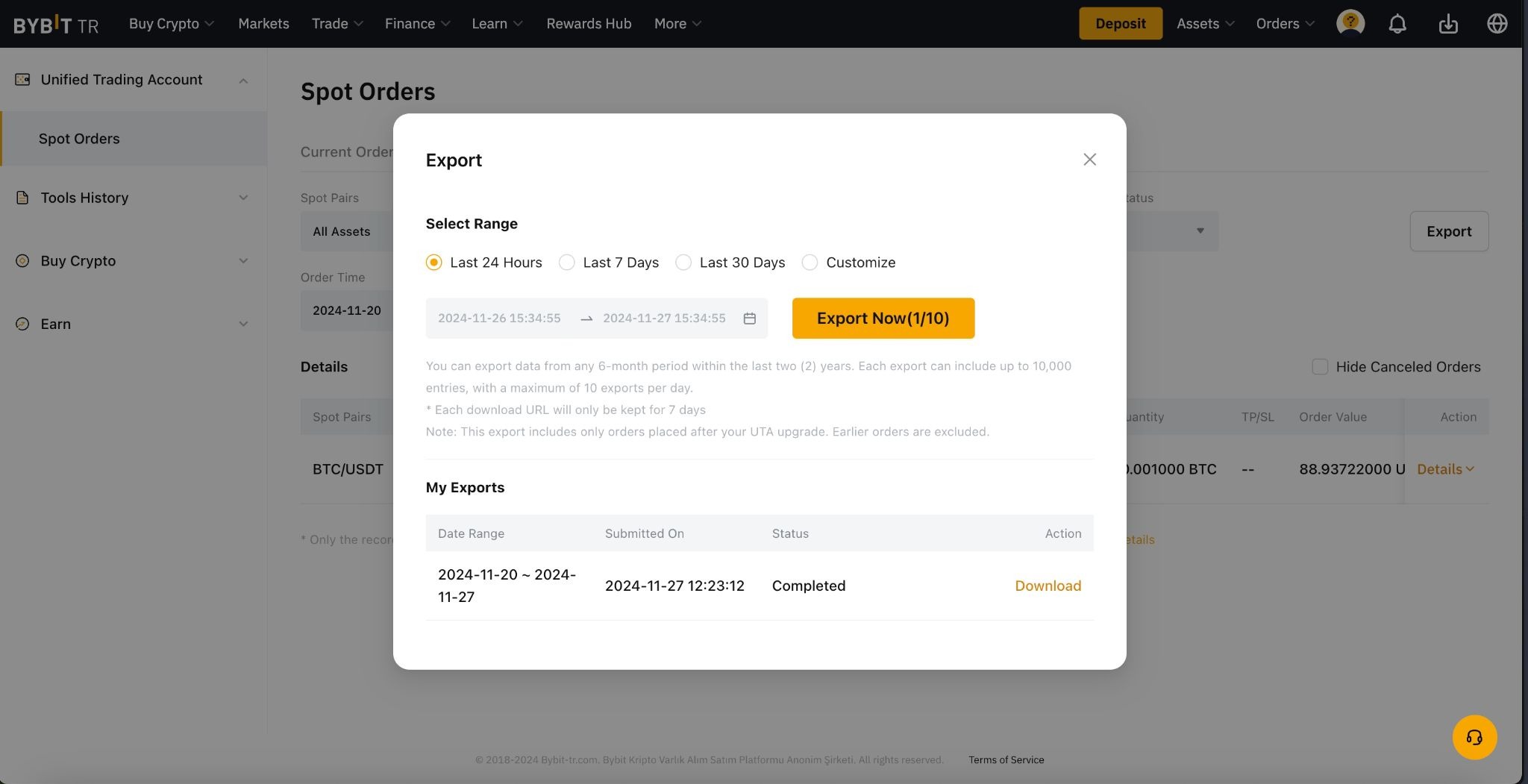
Please take note of the following before exporting your data: