Bybit TR’s Internal Transfer withdrawal method allows users to withdraw assets to other Bybit TR accounts instantly without a withdrawal fee. If you want to withdraw your assets to another exchange or wallet, you will need to withdraw your assets using on-chain withdrawal. For details, please refer to How to Submit An On-Chain Withdrawal Request.
Here’s a step-by-step guide to withdrawing assets on Bybit TR via Internal Transfer.
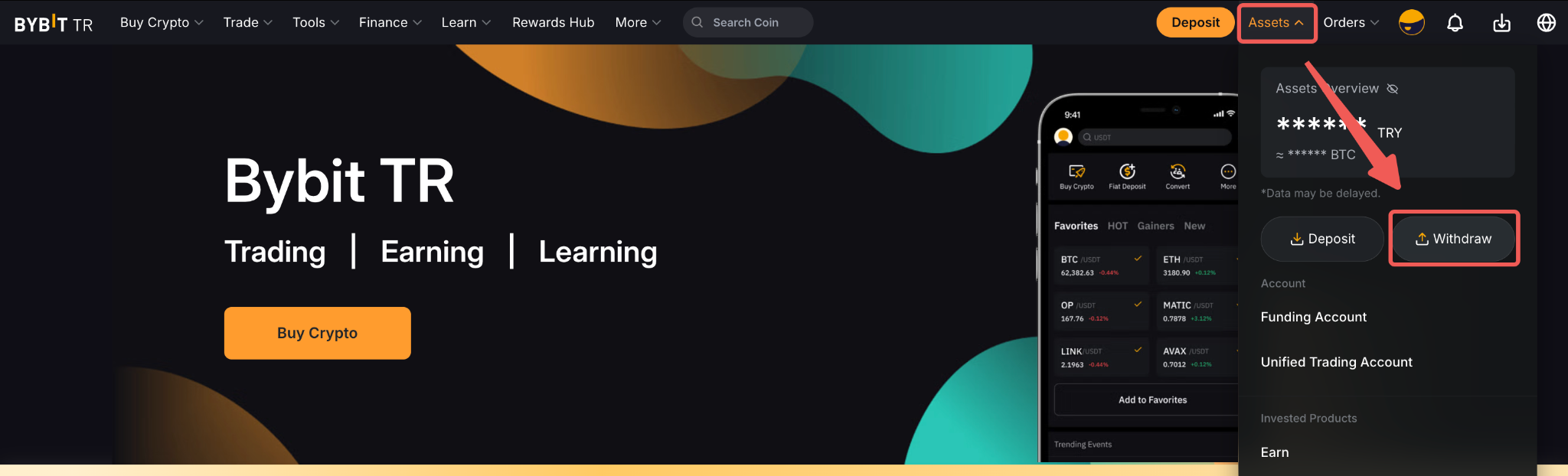
Step 1: Hover your cursor over Assets at the top right-hand corner of the Bybit TR homepage and click on Withdraw.
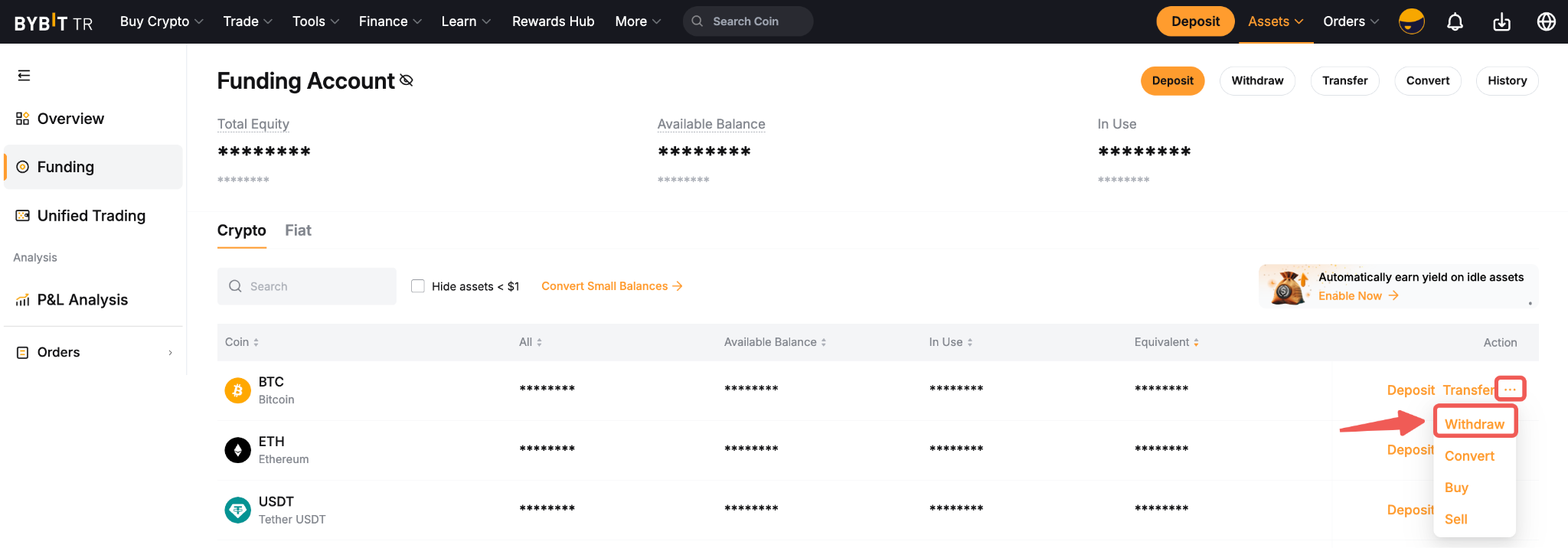
Alternatively, you can go to your Funding Account then click on Withdraw in the column of the currency you want to withdraw.
Notes:
- The Withdraw button for each coin is only accessible via your Funding Account.
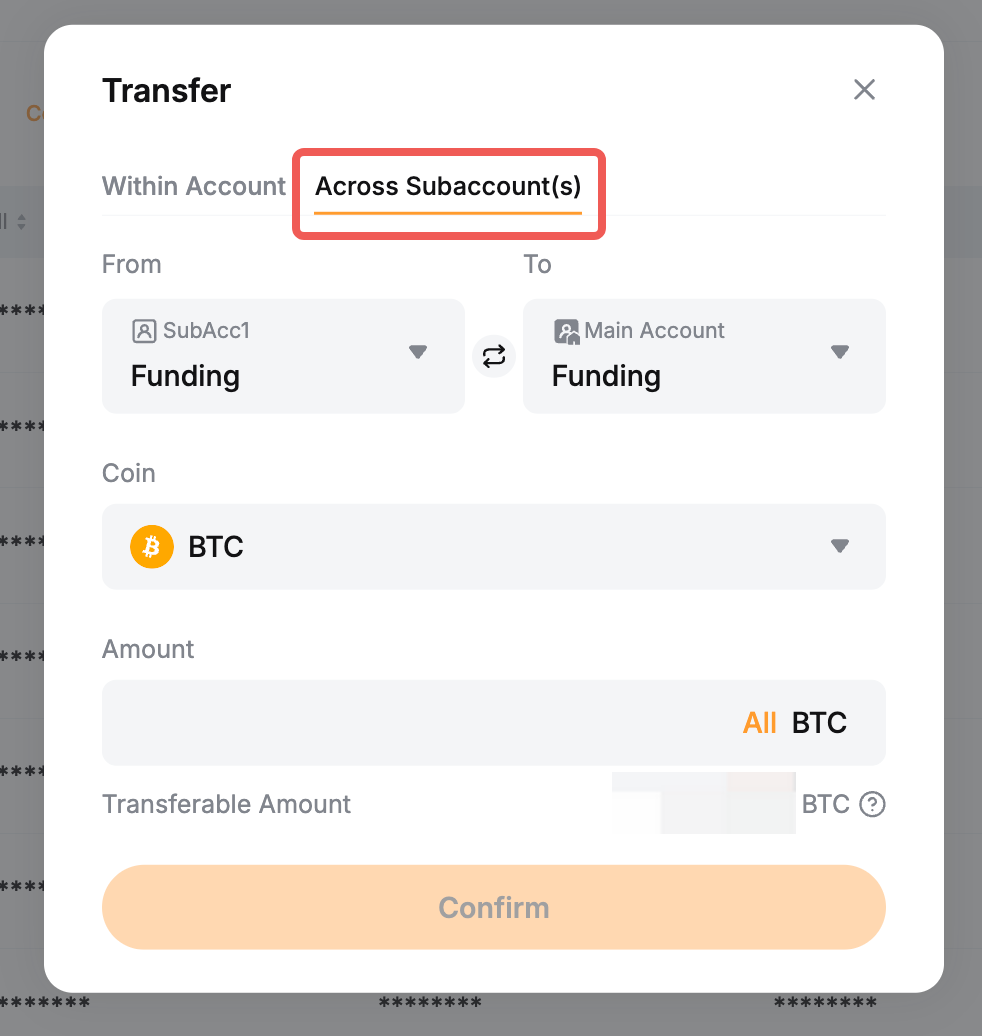
- If you want to withdraw assets located in your subaccounts, please transfer them to your main account by clicking on Transfer and select the Across Subaccount(s) tab.
Step 2: Please select or fill in the following parameters to submit your withdrawal request:
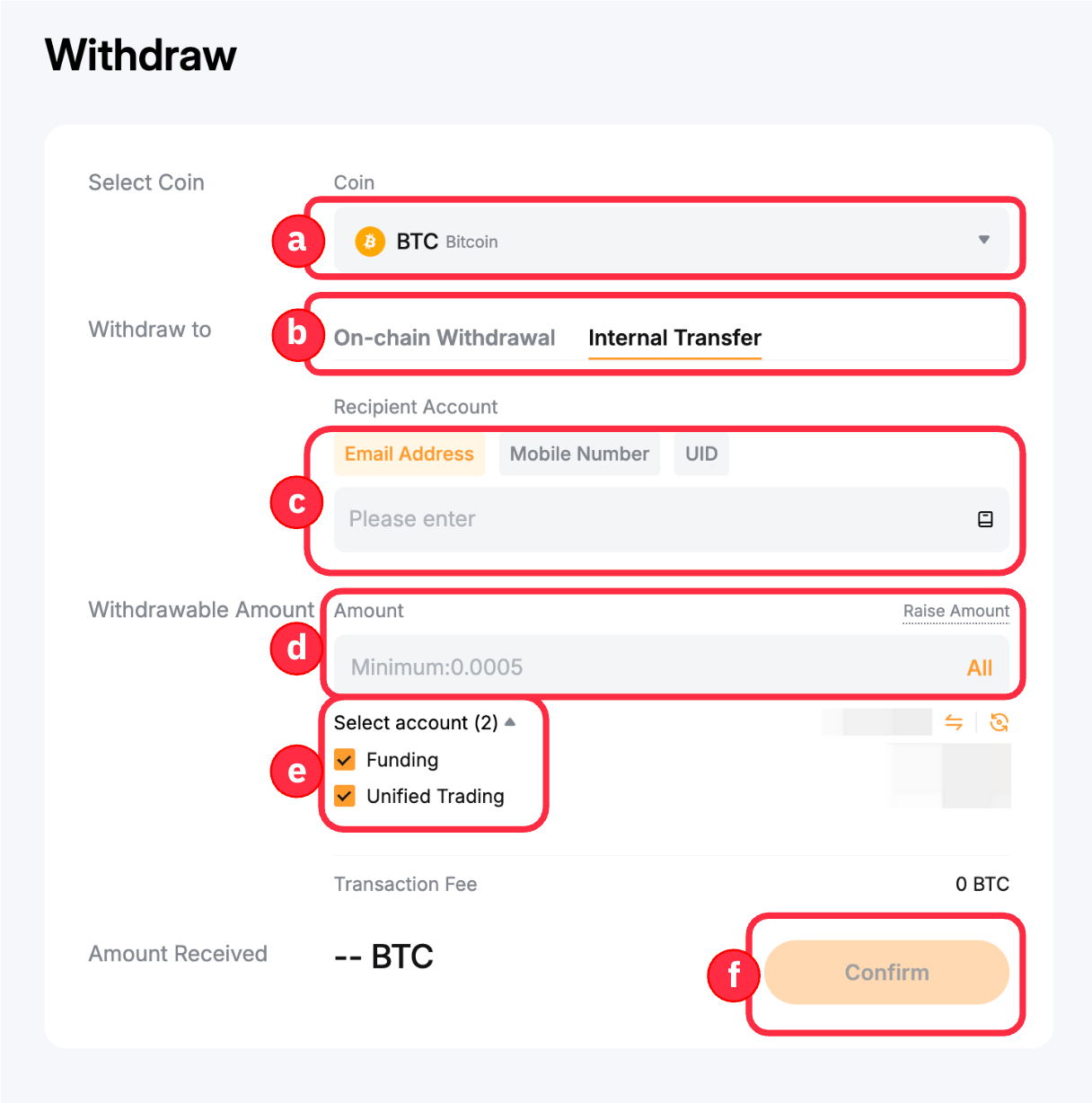
a. Coin: The type of coin you want to withdraw
b. Withdrawal Method: Internal Transfer
c. Recipient Account: Enter the recipient's email address, UID or mobile number
d. Amount: Enter the amount you want to withdraw, or click on All to make a full withdrawal.
e. Select Account: Tick the available boxes to choose from which account you would like to make a withdrawal. You can opt to withdraw from your Funding Account, Unified Trading Account, or both.
f. Please ensure all information is correct before clicking on Confirm.
Notes:
— Withdrawals via internal transfers can only be done to Bybit TR accounts that have completed Identity Verification.
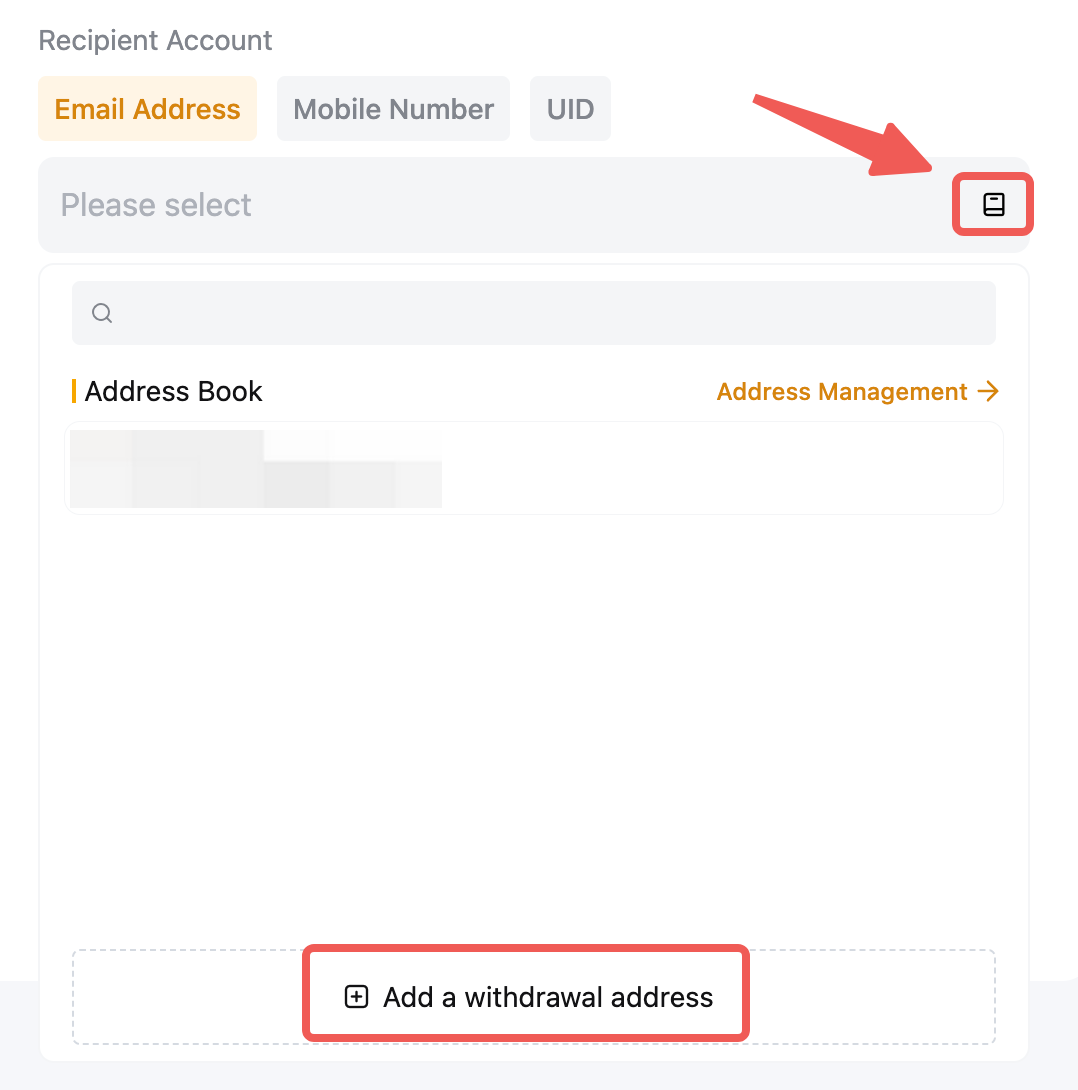
— You can also add an email address, UID or mobile number to your wallet address book by clicking on Add. For more details, please refer to How to Add a Withdrawal Wallet Address.
— If you perform an internal transfer for assets located in your Unified Trading Account, the funds will be automatically transferred to your Funding Account first for the withdrawal process.
Step 3: Click on Submit on the pop-up window, and you’ll be directed to the withdrawal verification page.
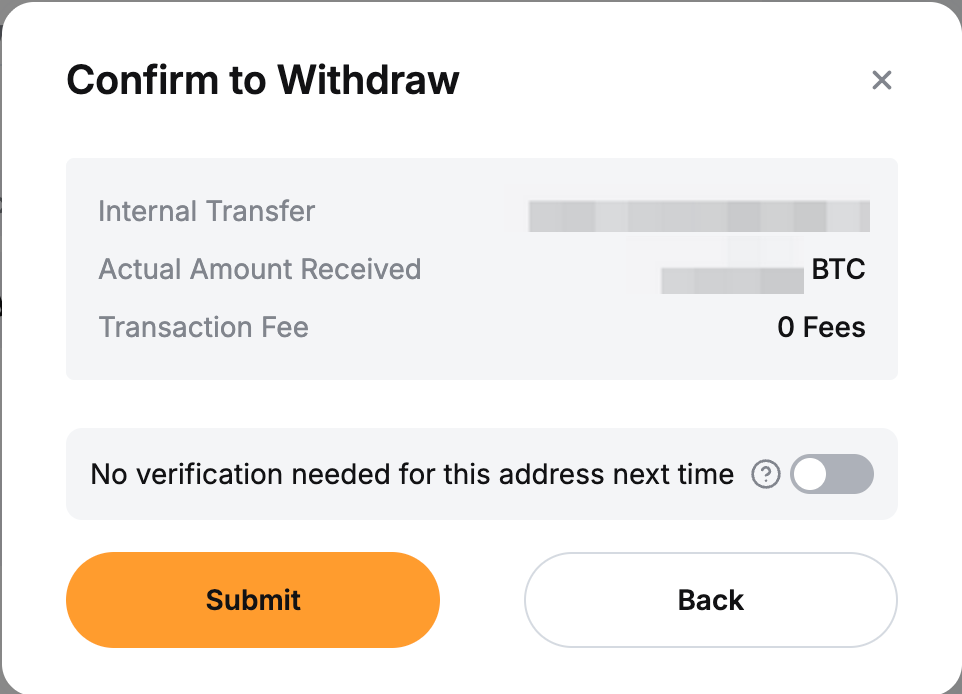
Please note that the following two verification steps — email verification and Google Authentication — are required if your recipient email address and/or mobile number are not yet verified. To learn more about how to manage your withdrawal security, please refer to this page.
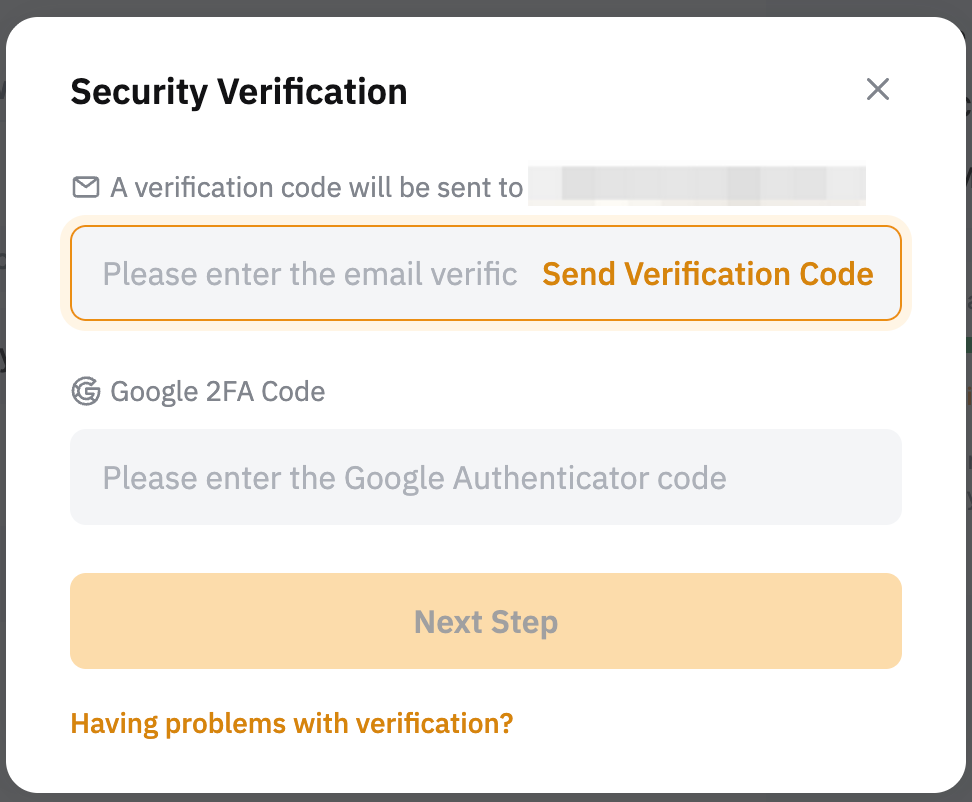
a. Email verification code: Click on Send Verification Code and the email containing your email verification code will be sent to the registered email address for your account. Please enter the verification code that you’ve received in the available field.
Tip: If you have not received the email, please check your spam folder or refer to Troubleshooting: Unable to receive Email verification code. The verification email is only valid for five minutes.
b. Google Authenticator: Please enter the 6-digit Google Authenticator 2FA security code you’ve obtained.
Your withdrawal request has been successfully submitted!
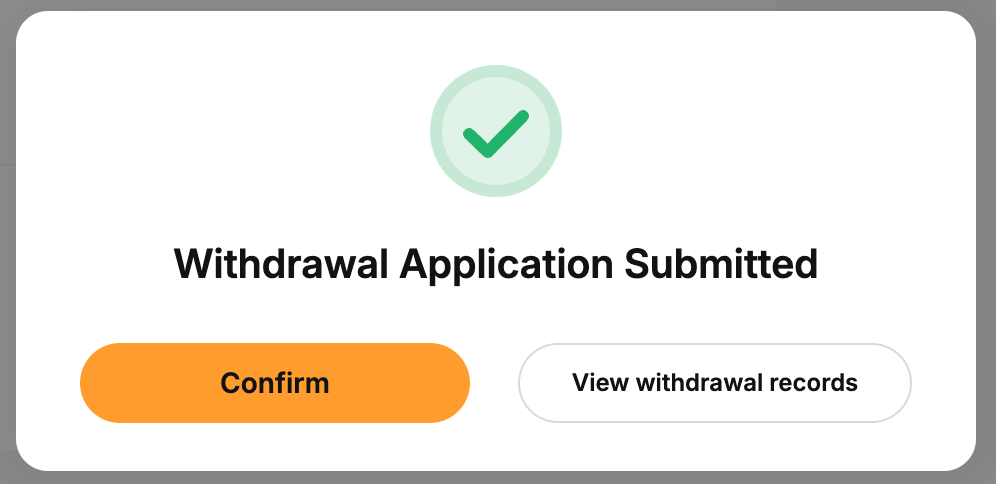
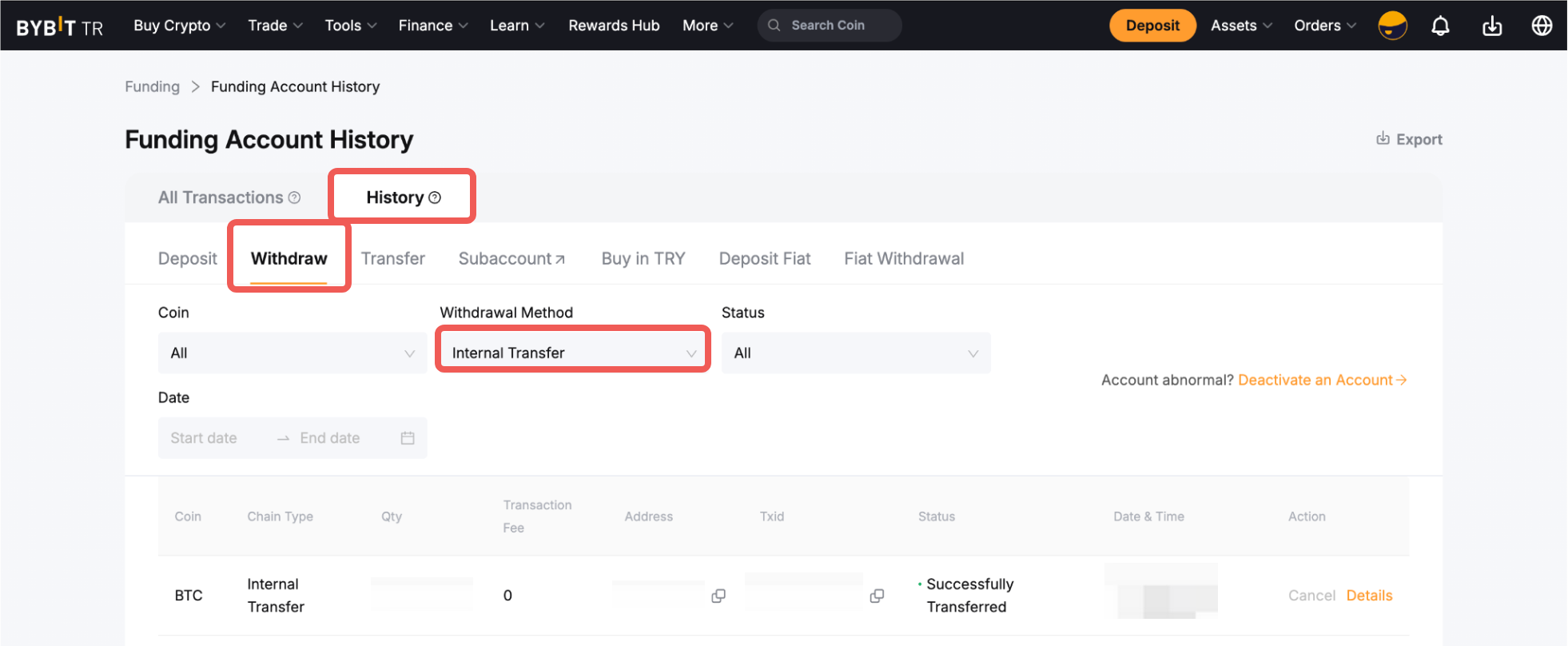
To view your internal transfer history, please head to your Funding Account → History, and select Internal Transfer in the Withdrawal Method column. If you are the recipient, select Internal Transfer in the Deposit → Deposit Method column.